Claude Code on Your Phone: A Practical Guide to Remote Control
Start a coding task at your desk, then keep steering it from the couch — without your code ever touching the cloud.
You kick off a long refactor in your terminal. Forty files, maybe twenty minutes of work. Before, your options were to sit and watch the scrollback or close the laptop and lose the thread. Now there’s a third option: put the laptop in your bag, pull out your phone, and keep driving the same session from wherever you end up.
That’s Remote Control. It shipped as a research preview in early 2026, and the thing most write-ups get wrong is what it actually is. So let’s start there, because the whole mental model depends on it.
It is not Claude Code in the cloud
The single most important idea: Remote Control is a remote window into a session that keeps running on your own machine. It is not cloud execution.
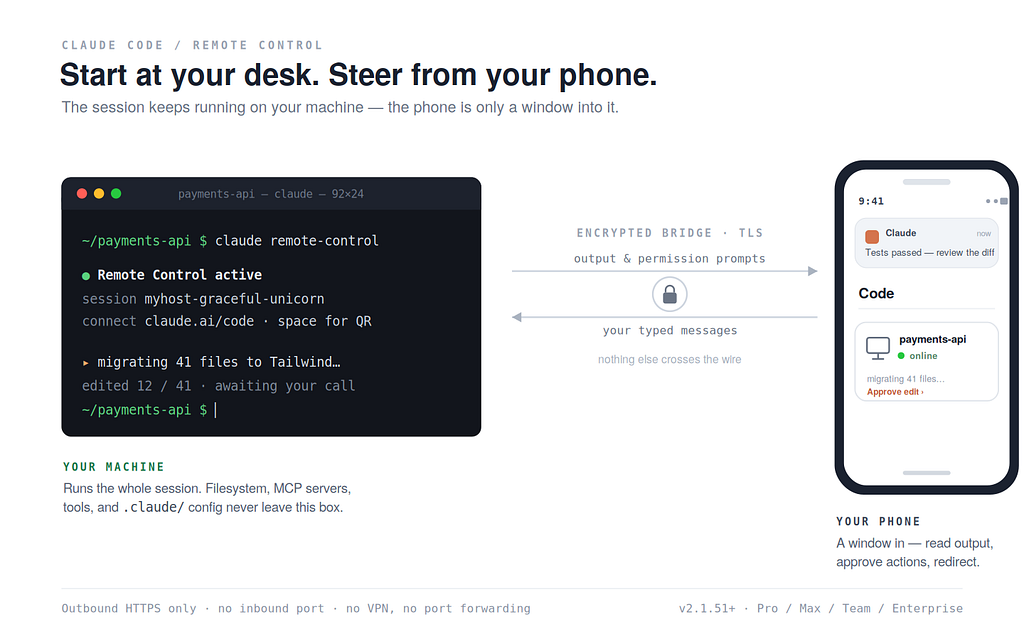
When you enable it, your laptop or workstation keeps doing all the real work — reading and writing files, running your tests, talking to your local MCP servers. Your filesystem, your .claude/ settings, your environment variables, your project credentials: all of it stays put. What travels over the network is only the conversation — the messages you send and the output and permission prompts that come back. Your phone is just a second screen.
This is the line that separates it from Claude Code on the web. The web version runs in Anthropic-managed cloud infrastructure — a fresh environment with no access to your local toolchain. Remote Control preserves the exact machine you started on, which is the whole point if your project depends on a local database, a custom MCP server, or anything else that doesn’t exist in a clean cloud sandbox.
What you need
Three things, and they’re quick to confirm.
A recent enough version. Remote Control needs Claude Code v2.1.51 or later — check with claude --version. Push notifications (covered below) need v2.1.110 or later.
A claude.ai login. It’s available on Pro, Max, Team, and Enterprise plans. API-key authentication is not supported, so if ANTHROPIC_API_KEY is set in your environment, unset it and sign in with /login. On Team and Enterprise, an Owner has to flip the Remote Control toggle in the admin settings first — it's off by default there.
Workspace trust. Run claude in your project directory at least once so you've accepted the trust prompt.
Starting a session
There are three ways to begin, depending on where you are when you decide you want it.
If you’re already mid-task in the terminal and need to step away, just type the command inside your running session:
/remote-control
The short alias /rc does the same thing. Your conversation history carries over, and Claude prints a session link plus a QR code.
If you know up front you’ll want remote access, start the session with the flag:
claude --remote-control
This gives you a normal interactive session you can also reach from your phone — you can keep typing locally while it’s available remotely. You can pass a name too: claude --remote-control "Payments refactor".
For unattended or multi-session use, run server mode in its own terminal:
claude remote-control
This process sits waiting for connections, displays a session URL, and lets you press the spacebar to toggle a QR code. Server mode can host multiple concurrent sessions, which the other two modes can’t.
In the VS Code extension, type /rc in the prompt box (it won't render a QR code, but a banner shows connection status with an Open in browser link).
Connecting from your phone
Once a session is live, you have three ways in:
Scan the QR code with your phone to open the session straight in the Claude app.
Open the session URL in any browser to land directly on it.
Or just open the Claude app, tap Code in the navigation, and find the session in the list — Remote Control sessions show a computer icon with a green status dot when they’re online. This last method is the most reliable across platforms.
Don’t have the app yet? Run /mobile inside Claude Code and it'll show a download QR code for iOS or Android.
A nice touch: the conversation stays in sync across every connected surface. You can send a message from your terminal, read the reply on your phone, and approve the next step from a browser tab, all in the same thread.
Get notified instead of babysitting
The point of walking away is not having to watch. With the mobile app signed in to the same account, Claude can push notifications to your phone — typically when a long task finishes or when it hits a decision it needs you for. You can even ask for one in your prompt: notify me when the tests pass.
To turn it on, run /config in your terminal and enable Push when Claude decides (proactive updates), Push when actions required (permission prompts and questions), or both. If /config ever shows No mobile registered, just open the app on your phone so it can refresh its push token.
Making it the default
By default Remote Control only activates when you explicitly ask for it. If you’d rather have every session ready to hand off, run /config and set Enable Remote Control for all sessions to true. Now you'll never reach for your phone only to realize you forgot to run /rc before you left.
The gotchas worth knowing before you rely on it
This is a preview, and a few real constraints come with it.
The local process has to stay alive. Remote Control runs as a process on your machine — if you close the terminal or quit VS Code, the session ends. The community fix is to run Claude Code inside tmux (or screen) so the session survives a closed terminal; detach with Ctrl+B D before you walk away and it keeps running on the server.
There’s a roughly ten-minute network timeout. If your machine is awake but can’t reach the network for about ten minutes, the session times out and you start a new one with claude remote-control. For genuinely flaky connectivity — spotty mobile on a train — the older SSH + mosh + tmux stack still handles drops more gracefully.
One remote session per interactive process. Outside of server mode, each Claude Code instance serves a single remote viewer at a time.
Some commands are local-only. Anything that opens an interactive picker in the terminal — /resume, /plugin — works only from the local CLI. Plenty of others (/compact, /clear, /context, /usage, and a text-mode /mcp) do work from mobile and web.
And the limitation people ask about most: you can’t start a fresh session from your phone. Remote Control continues a session you already kicked off at your machine. If you want to message a task to your computer while you’re away and have it spin up the work, that’s a different feature — Dispatch — which pairs the mobile app with the Claude Desktop app. Worth knowing the two are separate so you reach for the right one.
Why the security model is reassuring
The connection is outbound-only. Your local session makes outbound HTTPS requests and never opens an inbound port on your machine — it registers with the Anthropic API and polls for work, so there’s no port forwarding and no VPN to configure. Everything travels over TLS, the same transport as any Claude Code session, using multiple short-lived credentials each scoped to one purpose. The practical upshot is the one from the top of this piece: your files and MCP servers never leave your machine. Only the chat does.
That said — and this matters more as you grant the agent broader permissions — a remote session is still a live agent with whatever access you’ve given it on a real machine. If you run with permissions wide open, treat the convenience accordingly: isolate risky work in a container or sandbox rather than pointing it at your primary environment, and keep approving actions rather than skipping the prompts just because you’re tapping a phone.
The shift underneath it
Strip away the setup details and Remote Control is a small feature with a large implication. The job stops being the person who writes code at a desk and edges toward the person who orchestrates agents from anywhere. The terminal is no longer the place you have to be — it’s just where the work happens to run. You can be on a train.