Your Claude Code Install Worked. So Why Does Windows Say “claude is not recognized”?
A short field note on the one Windows quirk that wastes an afternoon — and the one-line fix that ends it.
I installed Claude Code on a Windows machine last week. The installer told me, in a cheerful green checkmark, that everything had succeeded. Then I typed claude --version and PowerShell answered with a wall of red:
claude : The term 'claude' is not recognized as the name of a cmdlet,
function, script file, or operable program.
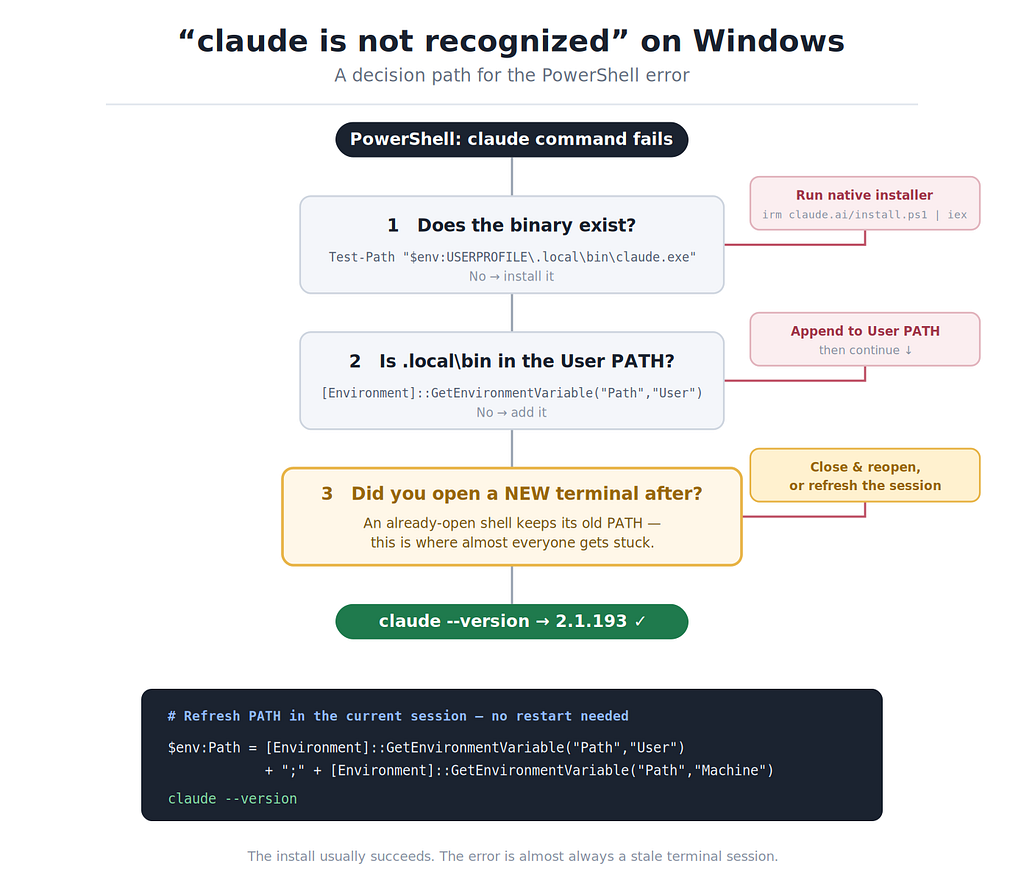
If you have hit this, the instinct is to assume the install failed and start over. It almost certainly didn’t. After walking through the whole chain — download error, PATH entry, terminal session — I came out the other side with a clear picture of where Windows trips you up. This is that picture, in the order the problems actually appear.
First, the install itself
The recommended way to install Claude Code on Windows in 2026 is the native installer. No Node.js, no npm, no manual PATH work. In PowerShell:
irm https://claude.ai/install.ps1 | iex
The first time I ran this, it died partway through:
Failed to download binary: Unable to read data from the transport
connection: An established connection was aborted by the software in
your host machine.
This is not a script bug. The wrapper script downloaded fine; the binary it then reaches for (hosted on Google’s storage) had its connection cut. The usual suspects are a VPN, a firewall, an antivirus filter, or a corporate proxy sitting between you and the download host. Turning the VPN off and running the command again was enough in my case. If you are on a restricted network and it keeps failing, two fallbacks use a different path entirely:
winget install Anthropic.ClaudeCode
or, the deprecated-but-functional npm route (needs Node 18+):
npm install -g @anthropic-ai/claude-code
On the retry, the install finished cleanly:
Claude Code successfully installed!
Version: 2.1.193
Location: C:\Users\<you>\.local\bin\claude.exe
And right underneath, the warning that explains everything that came next:
Native installation exists but C:\Users\<you>\.local\bin is not in
your PATH.
The part everyone misreads
The binary is real. You can prove it:
Test-Path "$env:USERPROFILE\.local\bin\claude.exe"
# True
It just lives in a folder Windows doesn’t search when you type a command. So you add that folder to your User PATH — the GUI works, but one line is faster:
[Environment]::SetEnvironmentVariable("Path", $env:Path + ";$env:USERPROFILE\.local\bin", "User")Run claude --version. Same red error.
This is the moment people give up, reinstall, switch to WSL, or start editing PATH by hand in the System Properties dialog. None of that is necessary, because nothing is actually wrong. A PowerShell session loads its PATH once, when it opens. Changing the saved PATH afterward does not reach back into a window that is already running. Your edit is correct; the terminal you are typing into simply hasn’t read it.
So the fix is not another PATH edit. It is a fresh shell:
- Close the PowerShell window completely and open a new one, or
- Pull the updated PATH into the live session without restarting:
$env:Path = [Environment]::GetEnvironmentVariable("Path","User") + ";" + [Environment]::GetEnvironmentVariable("Path","Machine")
claude --version
# 2.1.193
If it still fails (it probably won’t)
Before assuming anything exotic, confirm the two facts the fix depends on. That the folder is truly saved:
[Environment]::GetEnvironmentVariable("Path","User") -split ';' | Select-String "local"You should see ...\.local\bin in the list. And — a genuine footgun — check that your PATH didn't get silently truncated. The SetEnvironmentVariable approach above writes your entire current PATH back into the User PATH, and Windows can quietly cut off a string that grows too long, lopping off whatever you just appended:
($env:Path).Length
A few hundred characters is nothing to worry about. If you are up in the thousands and the entry keeps vanishing, that truncation is your real problem, and adding the folder through the Environment Variables GUI (which edits the User PATH in isolation) sidesteps it.
If the folder is present, the binary exists, and a fresh terminal still can’t find it, where.exe claude will tell you what the shell is actually resolving — but at that point you have left the common case behind.
The one thing worth remembering
The error text looks catastrophic and points at the wrong thing. Strip it down and almost every Windows “claude is not recognized” report is one of three states: the binary isn’t there, the folder isn’t on PATH, or — most often — the terminal you are staring at was opened before you fixed the PATH. The install was fine all along. You just needed a new window.
One note unrelated to PATH: Claude Code requires a Pro, Max, Team, Enterprise, or Console account. The free plan doesn’t include it, so once claude resolves, that's the next thing it will ask you about.